The journal
How to photograph your artwork with a phone? Practical, standards-aligned workflow
how to photograph your artwork using a phone, with practical steps for lighting, geometry, and color-managed sRGB exports for web and preservation.
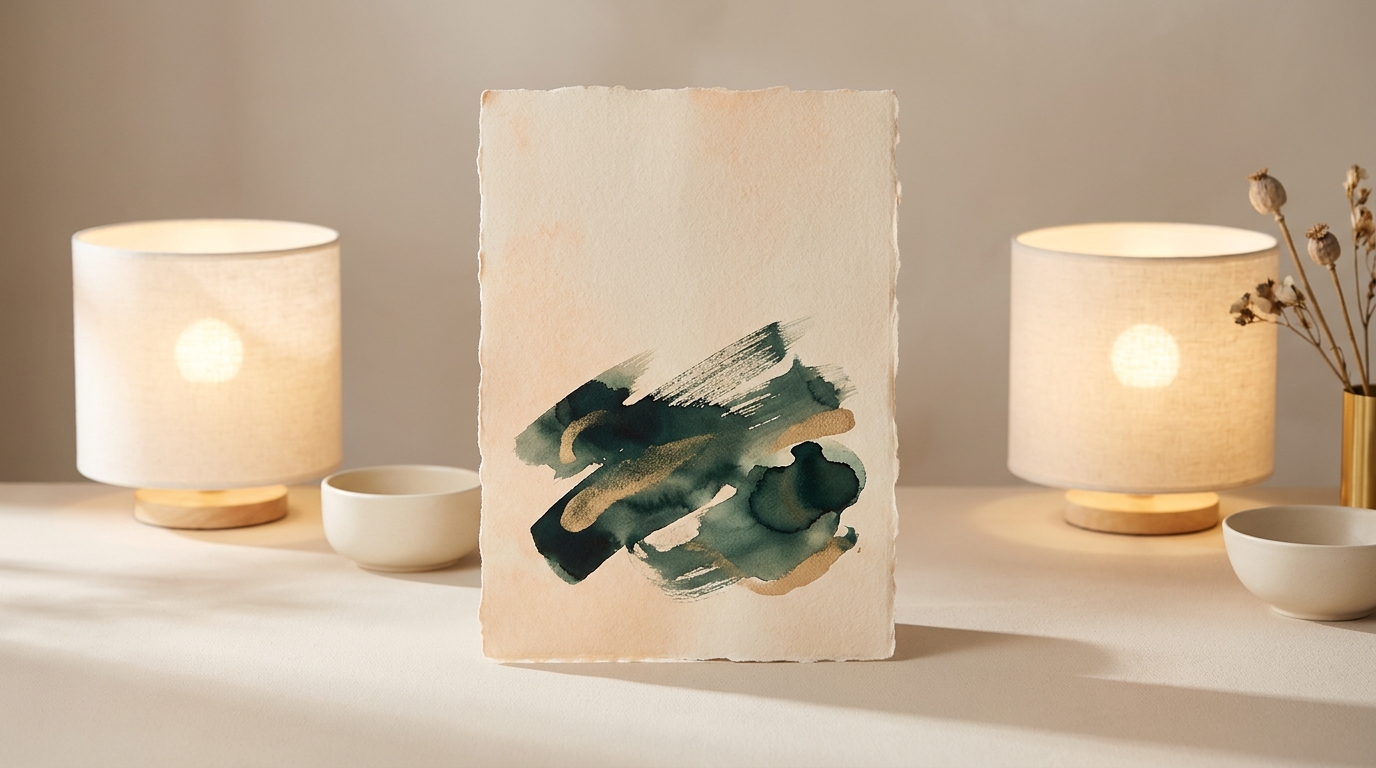
How to photograph your artwork: quick answer and what you need
One-sentence quick answer
Control the light, keep the camera sensor plane parallel to the artwork, and create a color-managed export for web and preservation, following established digitisation practice FADGI Still Image Guidelines.
Essential gear and simple checklist
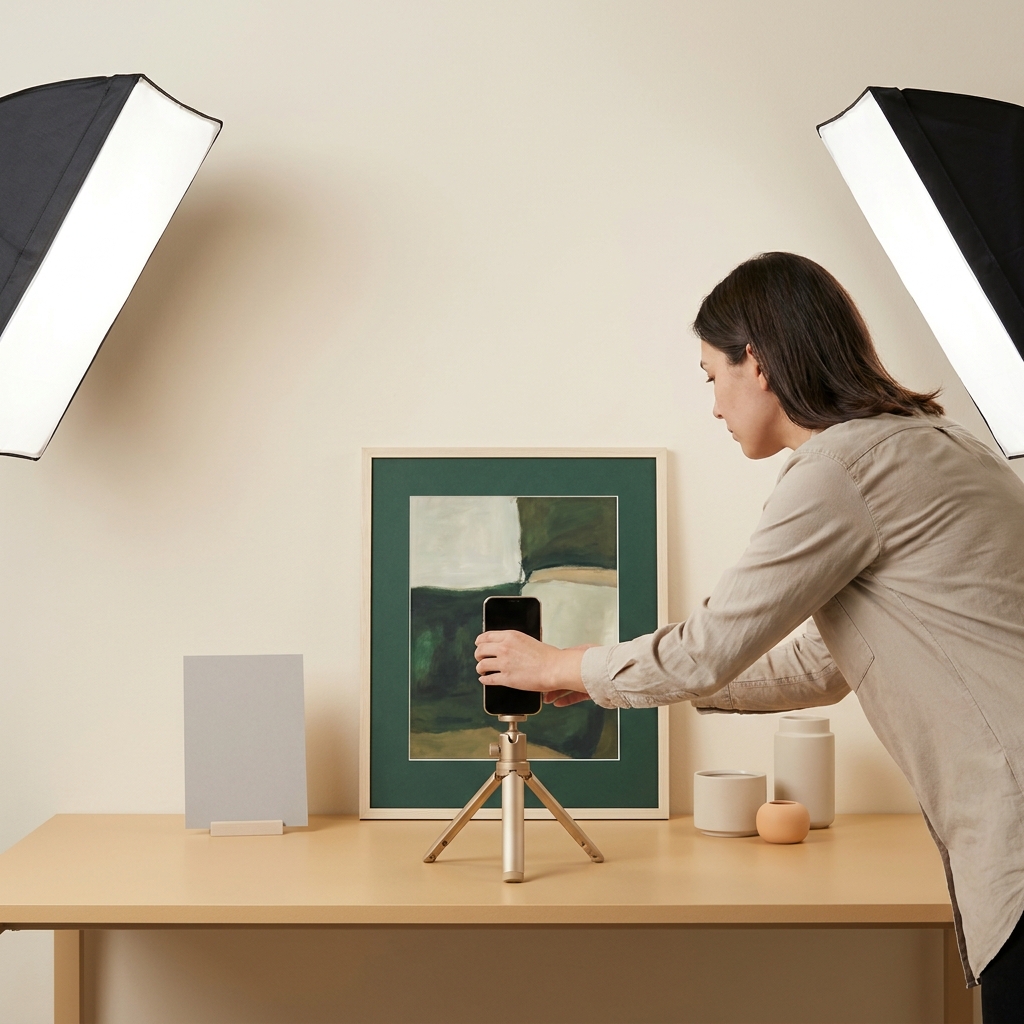
Minimal kit for reliable captures: a smartphone with the best available capture mode, two matched diffuse lights or a single soft source, a neutral grey or white reference target, and a tripod or stable support for the camera.
Simple prep steps: clean the artwork surface, remove or reduce glass reflections if possible, place matched lights at roughly 45 degrees to the surface, level the camera so the sensor is parallel to the artwork, and capture a neutral reference target in the same light.
Light and geometry: the technical foundations for accurate captures
Why even, diffuse lighting matters
Even, diffuse illumination cuts surface shadows and reduces specular highlights, which helps the camera record the artwork's tones and detail more consistently; institutional guidance recommends using two matched lights at about 45 degrees to the plane of the work FADGI Still Image Guidelines.
Practical setup: use softboxes or diffusers on the lamps, match lamp types and bulbs so their color temperatures are as close as possible, and place them symmetrically to avoid directional bias on the surface.
Keeping the camera parallel and avoiding perspective
Keep the phone sensor plane parallel to the artwork to prevent keystone distortion and to preserve dimensional accuracy for prints and listings; small tilt causes measurable perspective distortion that is best avoided at capture rather than fixed in heavy editing.
Use a level on your tripod or a built-in grid overlay in the camera app to square the frame, and measure from the artwork to the camera so the phone is centered and perpendicular to the center of the work.
Single color temperature and white balance basics
Choose a single, consistent color temperature for the session and set white balance from a neutral reference target captured in the same light to avoid mixed-light casts that require heavy corrective edits FADGI Still Image Guidelines.
Practical note: avoid mixing daylight and artificial tungsten in the same capture, and if you must, flag the capture in your notes so you can apply cautious edits later rather than chasing inconsistent casts.
Phone setup and capture workflow: step by step for reliable masters
Physical setup and framing
Place the artwork on a stable surface or hang it squarely, then mount the phone on a tripod or clamp so the sensor is parallel to the artwork; measure the phone position and use a bubble-level or the phone's software level to confirm alignment.
Square the frame by aligning the artwork edges with the viewfinder grid and leave a small border for cropping; avoid wide-angle distortion by standing back and zooming slightly if the phone allows optical or lossless zoom.
Camera settings and capture method
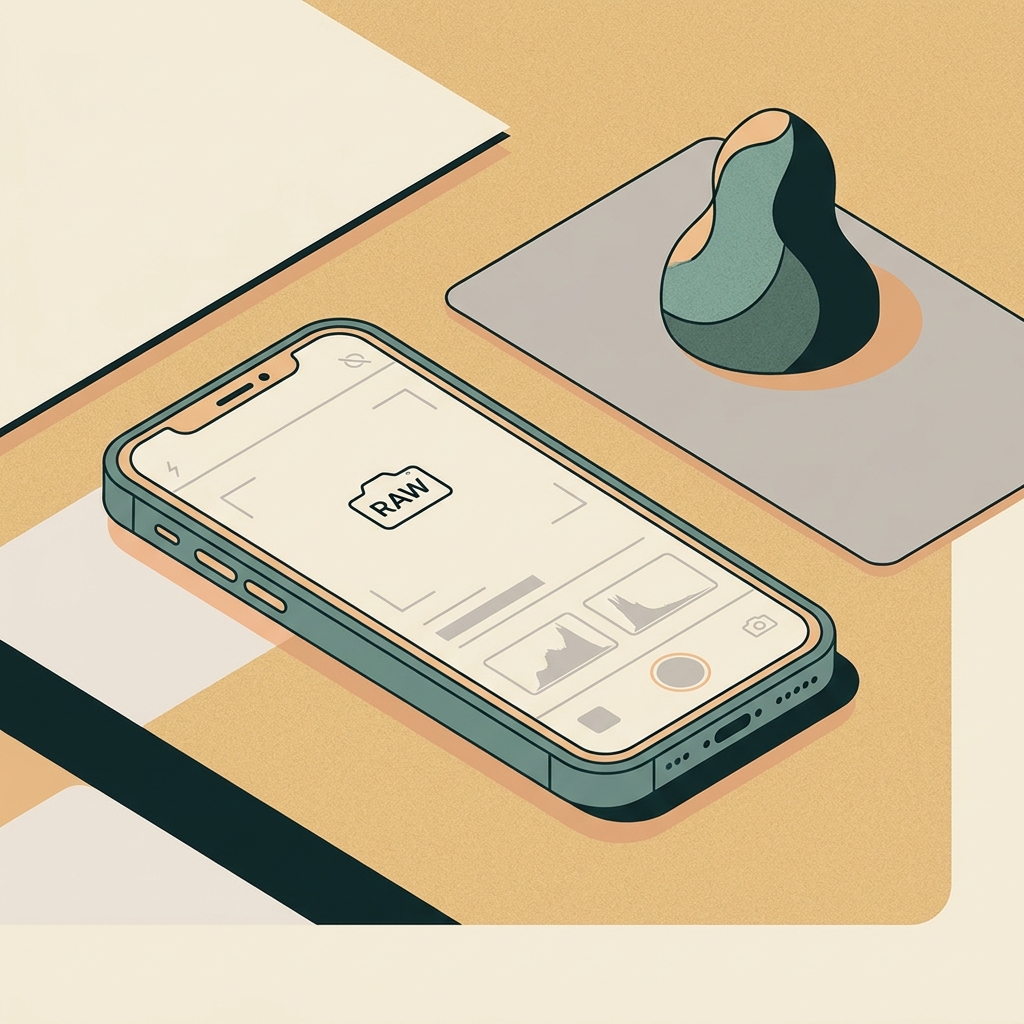
Use the phone's highest quality capture mode, enable RAW if available, lock exposure and white balance where possible, and avoid letting the device switch auto-modes mid-session which can change color or exposure between frames FADGI Still Image Guidelines.
If RAW is not available, capture at the highest JPEG quality and keep consistent settings across the session; create a capture note that records the lamp positions and any filters or diffusers used.
What is the simplest reliable method to photograph artwork with a phone?
Stabilise the phone so the sensor is parallel to the artwork, light the work with matched diffuse sources at about 45 degrees, photograph a neutral reference target in the same light, and save a high-quality master before making any edits.
Using reference targets and capture sequence
First light the artwork and let the lamps stabilise, then photograph the neutral reference target in the same position and light as the artwork; capture the target at the start of the session and again if you move lights or change the setup FADGI Still Image Guidelines.
Capture sequence to follow every time: set up and stabilise lights, photograph the neutral target, photograph a tight frame of the work and a full-frame shot, and finish with a short capture note describing light type, color temperature and any deviations from the standard setup.
Color management and white balance: getting trustworthy color on screen and print
ICC profiles and why they matter
ICC profiles translate device-dependent color into standard spaces so capture and export behave predictably; a color-managed workflow that embeds profiles at capture and export improves the chance that colors look consistent across screens and in print Introduction to ICC profiles.
On mobile, treat the neutral reference as a practical anchor: set white balance from it during capture or use it later in an editing app that can read the reference to normalise color before embedding a profile.
Create consistent sRGB exports with embedded profiles
How to create a color-managed capture workflow with a phone
Capture the neutral reference target in the same lighting and include it in the same set of RAW or master files; use an editing app that supports embedding ICC profiles so you can assign or convert to a working profile and then export to your target space.
When you process, first apply exposure and tone adjustments, then set or confirm white balance against the neutral target, then assign or convert to the intended export profile before saving your master with an embedded profile.
Exporting for the web versus preservation
For web display, create an sRGB access export and embed the sRGB profile because browsers assume sRGB by default; converting and embedding the profile helps maintain consistent appearance across devices CSS Color Module Level 4.
Retain a higher-quality preservation master when you need it: uncompressed TIFF with an embedded ICC profile and suitable bit depth is still the institutional recommendation for masters, while JPEG derivatives are suitable for access or web copies.
Choosing file formats, resolution and export settings
When to keep a TIFF master
Institutions continue to recommend uncompressed TIFF with an embedded ICC profile and appropriate bit depth for preservation masters; keep a master in TIFF when you need the highest archival fidelity TIFF guidance from the Library of Congress.
Keep naming and folder conventions consistent and retain capture notes alongside the master, so any future work knows the lighting, white balance reference and capture choices used at creation.
How to generate sRGB web derivatives
Export a working copy converted to sRGB, resize for intended display dimensions, and embed the sRGB profile so browsers and common viewers present the image as intended; this is the standard approach for web access derivatives CSS Color Module Level 4.
When exporting, avoid excessive compression on the access JPEG and choose a quality setting that balances file size and visible artefacts; keep the master TIFF untouched for archival or print needs.
Resolution considerations for prints and galleries
Resolution requirements vary by printer and gallery; treat institutional specifications as ceilings for quality and consult the recipient for exact pixel dimensions and bit depth rather than guessing.
For prints, capture at a resolution that exceeds the final required pixels per inch for the largest expected print, and retain the master so you can make targeted exports for different outputs later.
Common mistakes, troubleshooting and quick fixes
Troubleshooting color casts and uneven light
If you see a color cast, check for mixed color temperatures and re-balance lights to the same temperature; use a neutral reference to set white balance and re-capture if the reference was not included FADGI Still Image Guidelines.
Quick fixes in editing help small shifts, but heavy color correction usually degrades subtle tones, so prefer a re-capture when the original lacked a neutral reference or the lighting was inconsistent.
Fixing geometry and perspective issues
Small perspective errors can be corrected in software, but large keystone distortion from an off-parallel capture will soften edges and change apparent proportions; if geometry matters, re-align and recapture rather than relying on extensive correction.
Use the grid overlay and a spirit level at capture to reduce reliance on corrective tools later, and keep a copy of the original master before any geometry edits so you can rework from the source if needed.
When rescanning or recapturing is required
Reshoot when color or geometry corrections demand heavy edits and the original capture did not include a neutral reference or a master-quality file; a short repeat of the capture takes less time than prolonged corrective work and produces more trustworthy results FADGI Still Image Guidelines.
Record capture notes with each session so you can judge whether a recapture is justified for a client, a gallery submission or for archival purposes.

Practical scenarios, short workflows and final checklist
Scenario A: flat framed painting for web sales
1) Hang or place the framed painting squarely and level, then mount the phone so the sensor is parallel to the glass plane. 2) Use two matched soft lights at about 45 degrees and photograph the neutral reference target in the same position. 3) Capture a tight frame and a full-frame shot, save a master, and export an sRGB derivative for the web.
Include metadata and a brief capture note: lighting type, color temperature, distance to camera and any glazing or filter details so buyers and printers understand the conditions of capture.
Scenario B: textured sculpture or relief with surface detail
1) Use raking light or a controlled angle to reveal surface texture while avoiding harsh cast shadows. 2) Photograph multiple views and detail shots, include the neutral reference target, and retain masters for each view. 3) For web, select a representative view and create a contrast-balanced sRGB export.
Document the lighting angles and distances for each view so you can reproduce the setup for future documentation or print reproduction.
Final capture and export checklist
Before you finish a session: capture and save a neutral reference target, keep a master file with an embedded profile when possible, export an sRGB web derivative with an embedded profile, and include capture notes and simple metadata for the recipient.
Store masters and derivatives in a clear folder structure and keep at least one unedited copy of the master so future conversions or prints start from the best possible source.
Frequently asked questions
Do I need special lights to photograph my artwork with a phone?
You do not need professional studio gear, but matched diffuse lights or a single soft source with a consistent color temperature produce more accurate results than mixed ambient light.
Should I shoot RAW or JPEG on my phone?
Use RAW if your phone supports it for the master file; if not, capture at the highest JPEG quality and retain an unedited copy as your working master.
Can I correct color and perspective in post instead of recapturing?
Minor adjustments are fine, but heavy color or geometric correction degrades image fidelity; if the capture lacks a neutral reference or shows strong perspective error, recapture.
Follow the capture sequence and checklist in this article, keep clear capture notes, and store masters alongside sRGB derivatives. Small investments in consistent lighting and a neutral reference target will pay off in fewer edits and more trustworthy reproductions. If you adopt these steps as a routine, your phone captures will become dependable sources for web listings, prints and archive submissions.
References
- https://www.digitizationguidelines.gov/guidelines/FADGI%20Technical%20Guidelines%20for%20Digitizing%20Cultural%20Heritage%20Materials_3rd%20Edition_05092023.pdf
- https://www.digitizationguidelines.gov/guidelines/
- https://www.color.org/whitepapers/
- https://www.w3.org/TR/css-color-4/
- https://www.loc.gov/preservation/digital/formats/fdd/fdd000022.shtml
- https://luiswester.com/sitemap-0.xml